Fleet & rentals · Reservations & availability
One calendar. No double bookings. No guesswork.
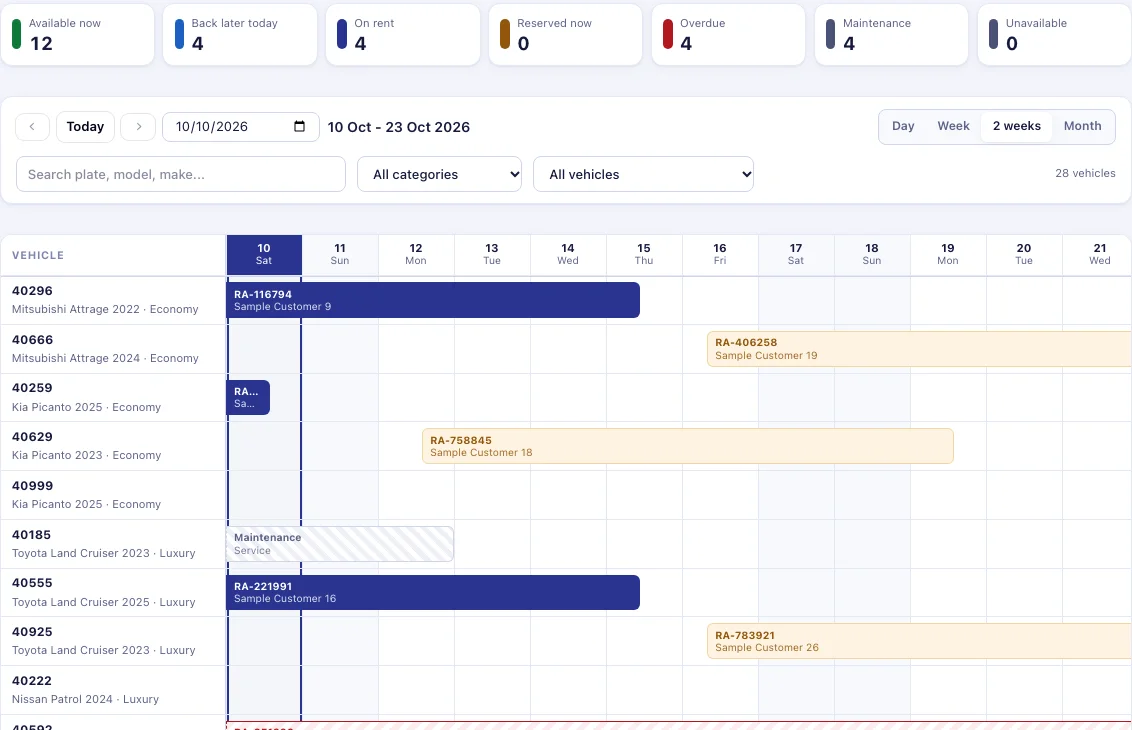
The availability calendar shows every car’s rentals on a timeline. Click an empty cell to start a booking with the date already filled in; click a bar to open the agreement.
What it does for you
Booking rules the system enforces for you
Booked safely, every time
Every new or changed booking is checked again when it is saved, inside a lock. Two agents cannot book the same car for the same minute.
Back-to-back is allowed
A return at 10:00 and the next pickup at 10:00 do not overlap. You keep cars working without padding the schedule.
Overdue cars stay blocked
If a car is not back, it stays unavailable for every later date until the return is recorded. The expected date passing never frees it.
Works on a phone
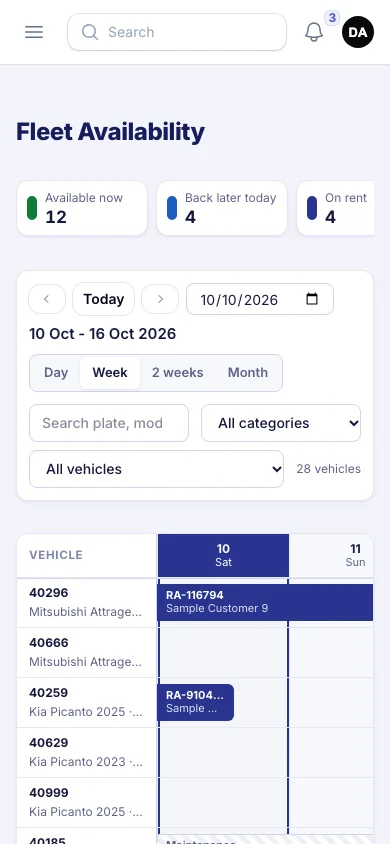
Status counters become a swipeable strip, and the timeline scrolls sideways while the vehicle column stays fixed.
How it works
Find a car and book it
Pick the period
Day (hour by hour), Week, 2 weeks or Month. Move with Previous, Today and Next, or jump with the date box.
Narrow the list
Search a plate or model, filter by category, or show only cars free for the whole range, booked, overdue or in maintenance.
Click an empty cell
A new agreement opens for that car with the day filled in. Past days and cars on hold cannot be booked.
Save with confidence
The save re-checks the car inside a lock. If something overlaps, you are told exactly why.
Also included
The same calendar in your pocket
On a phone the counters swipe sideways and the timeline scrolls while plates stay pinned on the left. Day, week, 2-week and month views all work.
In detail
What’s included
What the bars mean
- Navy: on rent
- Amber: reserved, not yet handed over
- Red hatched to the edge: overdue, blocked until returned
- Grey hatched: maintenance
- Grey: returned (history)
- Dashed edge: continues outside the visible range
Counters at the top
- Available now
- Back later today
- On rent
- Reserved now
- Overdue
- Maintenance
- Unavailable
Pickups, expected returns and calendar bars use Dubai time, so the counter, the fleet team and the daily report all read the same clock.
Questions
Reservations & Availability: common questions
Something else? Ask our team or read the Help Center.
Why can’t I click a day on the calendar?
Either the day is in the past, the car is on a manual hold, or your role does not include creating rentals.
A car shows as overdue but it is in the yard. What now?
Record the return on its agreement. Overdue means the return has not been recorded yet; recording it frees the car immediately.
Are the calendar counters the same as the dashboard?
Yes. The calendar, the dashboard and the daily fleet e-mail use one source for the fleet picture, so the numbers always match.
Connected to
Works hand in hand with
Next step
See your own rental workflow in VROOM.
Book a live demo and we will walk through a rental from booking to the financial statements, using demonstration data.